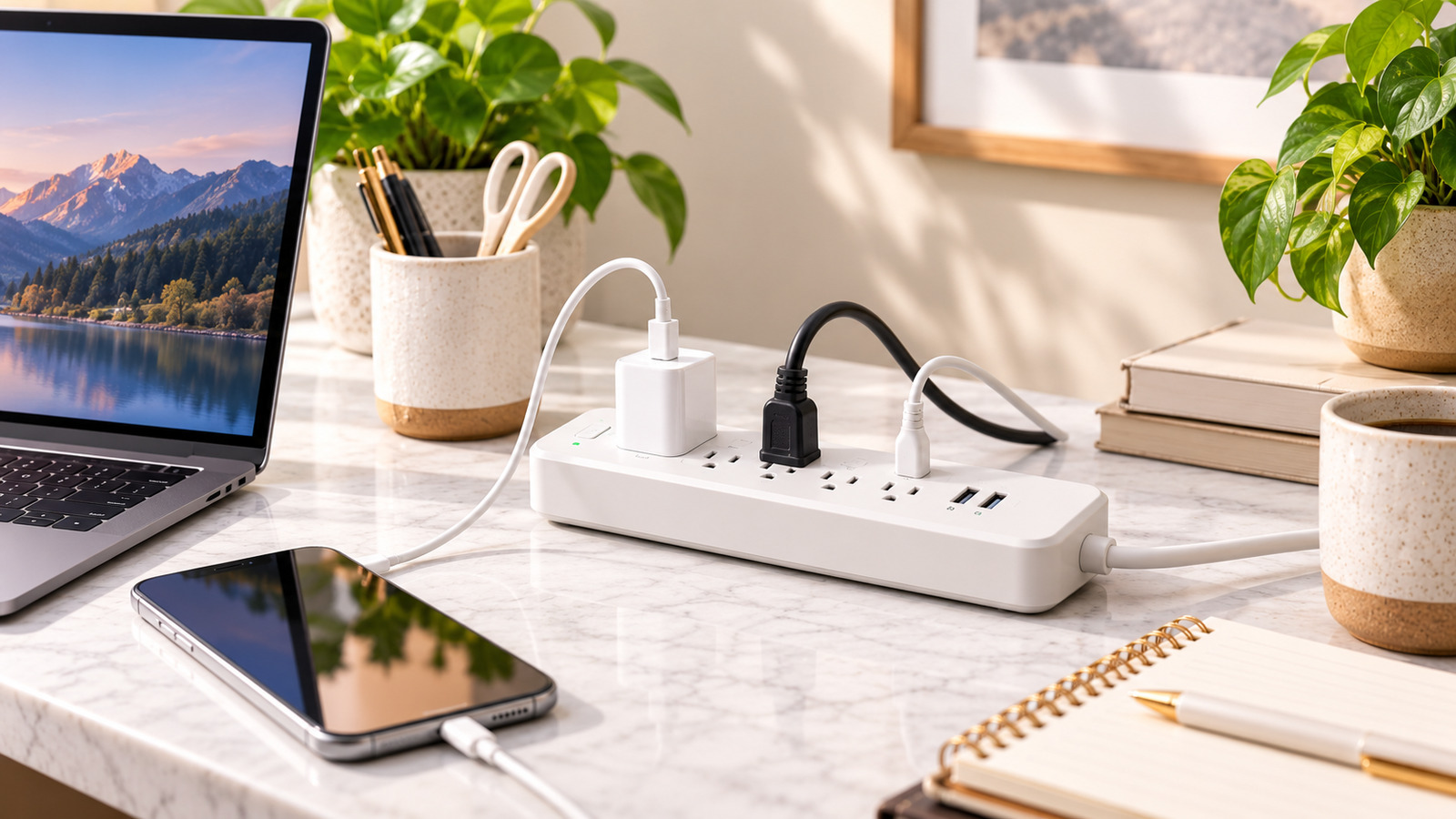
List the devices before buying adapters
A tidy charging setup starts with a simple inventory. Write down every device you charge at your desk: laptop, phone, tablet, earbuds, smartwatch, keyboard, mouse, headphones, desk lamp. Note each device's charging port and, where possible, its maximum charging power.
This list tells you how many ports you need, which types (USB-C, USB-A, wireless, proprietary) and how much total power the setup must supply. It also shows which cables you already own and which chargers can be retired.
USB-C wattage needs to match the device
USB-C chargers vary from a few watts to 100 watts or more. Many laptops charge through USB-C Power Delivery, and they need a charger that can supply enough power. A charger with too little output may charge a laptop very slowly or not at all while it is in use.
Check your laptop's original charger rating as a guide. Phones and tablets typically need much less. Using a higher-wattage USB-C PD charger with a phone is generally fine, because devices negotiate the power they accept.
Cables matter too. Higher-power USB-C charging can require a cable rated for that wattage; some cables are rated for 60 watts, others for 100 watts or more.
Shared power can reduce per-port output
Multi-port chargers usually list a total output. A 100-watt four-port charger may only deliver 100 watts from one port when used alone. When several devices are plugged in, the power is divided, and the laptop port may drop to a lower level.
Look for a clear power distribution table in the product details. If the laptop is your priority, make sure it will still receive enough power when all your other devices are connected.
Charging stations, docks and hubs
- Multi-port wall chargers: compact and flexible; ideal when you need a few high-power ports.
- Desktop charging stations: sit on the desk and keep cables within reach.
- USB-C docks: connect a laptop to monitors, keyboard, network and power with a single cable. Check display support and the power passed through to the laptop.
- Wireless chargers: convenient for phones and earbuds you pick up often, but generally slower and warmer than wired charging.
Safety and heat
Chargers get warm under load, which is normal, but they should not become hot to the touch. Choose chargers that list recognised safety certifications and protections against over-current, over-voltage and overheating. Give chargers some airflow rather than burying them under papers or cushions. Replace frayed cables and any charger that is damaged, buzzes loudly or smells of burning.
Cable management improves more than appearance
A tidy desk is easier to clean and reduces the risk of snagging cables or pulling devices off the desk. Useful options include:
- Under-desk cable trays to hold power strips and chargers.
- Cable clips on the desk edge to keep charging ends from falling behind the desk.
- Velcro ties or sleeves for bundles.
- Cables cut to the right length; shorter cables mean less clutter.
- Labels on chargers and cables so you know which is which.
Common mistakes to avoid
- Buying a multi-port charger without checking how power is shared.
- Using a low-rated cable for a high-power laptop.
- Keeping a drawer of old chargers instead of consolidating.
- Choosing wireless charging for devices that need fast charging.
- Letting chargers overheat in enclosed spaces.
Quick buying checklist
- List every device, port type and power need.
- Match USB-C PD wattage to your laptop.
- Check per-port output when all ports are in use.
- Use cables rated for the power you need.
- Look for safety certifications and protections.
- Plan cable trays, clips and labels.